
How to Repeat One Sentence on YouTube
Replay one YouTube sentence using timestamps, keyboard controls, or TubeLingo's caption panel. Learn what manual replay can do and when you need an A/B loop.
To repeat one sentence on YouTube, return to its start using a timestamp or caption line, play it, and pause at the end. YouTube's native Loop option repeats the whole video. An automatic sentence loop needs a separate tool that lets you set a start point A and an end point B.
This guide shows the manual options first. TubeLingo's caption-row replay can make returning to the line easier, but it does not stop automatically at the sentence end or keep looping by itself.
Choose the kind of repeat you actually need
| Your task | Use | What happens at the end |
|---|---|---|
| Hear a missed line again | Manual seek or caption-row replay | Playback continues; you pause it |
| Repeat a bounded phrase automatically | A dedicated A/B loop tool | The tool returns from B to A |
| Repeat the entire video | YouTube's native Loop option | The whole video starts again |
For the last option, see YouTube's official looping instructions. Looping an entire fifteen-minute interview is not the same as repeating the five seconds you missed.
Replay a short sentence without an extension
- Listen for where the sentence begins. Note the approximate time shown by the player.
- On desktop, click the player so keyboard controls have focus. The left arrow moves back five seconds; J moves back ten seconds. Use the timeline if you need a closer start.
- Play the sentence and press K to pause when the speaker finishes. The sentence end is your cue, not an automatic stopping point.
- Say the line back, then seek to the same starting point and repeat.
These controls follow YouTube's keyboard shortcut guide. If a shortcut types into a search or comment box instead, return focus to the player. On a phone, use the player timeline to return to the starting time; desktop keys do not apply to the mobile app.
If a transcript is available, you can also click a timestamped transcript line to return to that moment. Open the description and look for Show transcript. Our YouTube transcript guide covers finding the reader and missing-caption cases. A transcript line can split a sentence, so check the audio on both sides of the selected line.
Replay a caption line with TubeLingo
TubeLingo is a desktop Chrome extension. Once it is installed and has loaded the video's captions:
- Open its Subtitles panel and locate the line you want to hear again.
- Check the source text. If you are practising English, the original line should be English, not only an English translation of another caption track.
- Click the caption row or the circular replay arrow beside it. Playback returns to that caption's starting time and continues from there.
- Pause the player when the complete phrase ends. After speaking or taking a note, click the same row again.
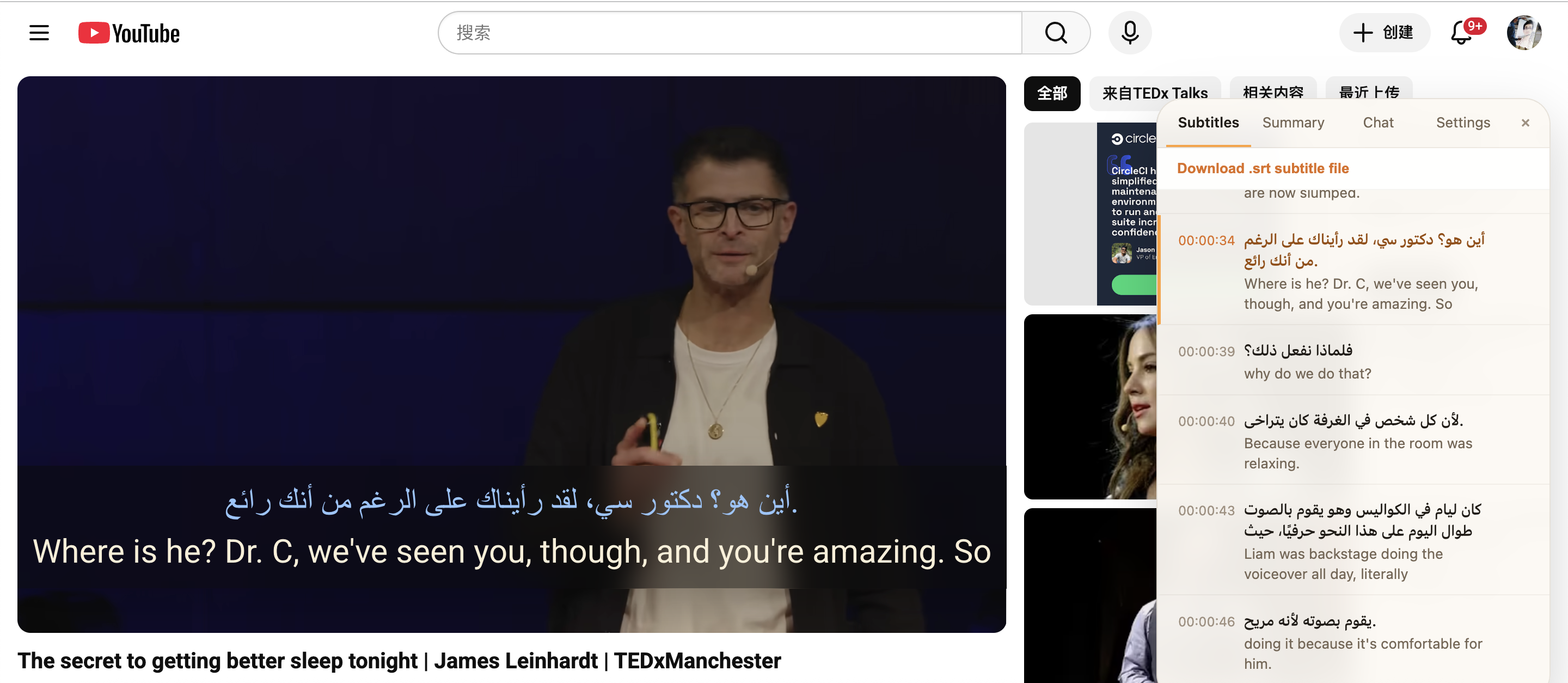
This is an existing interface example, not a recording of the exercise below. Your language pair and labels can differ by version and settings.
This is manual replay, not automatic looping. TubeLingo does not use this button to set an end boundary, insert a speaking pause, or score your pronunciation. A caption block is also not necessarily a complete sentence. Include adjacent blocks if the thought continues across lines.
Multiple-language videos need an extra check: YouTube's selected caption language and TubeLingo's source track may differ. If the panel has the wrong source language, use the native transcript or manual seek for this exercise instead of practising from the wrong text.
For installation and subtitle setup, use the dual-subtitle guide. Replay is useful even if you only want to understand a technical explanation rather than practise speaking.
Try a three-pass exercise on a real video
Open TED's official Matt Cutts video at 00:15. Select its English caption track in YouTube. Use approximately 00:15-00:45 as a candidate passage, then shorten it to one complete sentence that you can follow. Adjust the boundary by listening; the timestamp link starts playback but does not stop it at 00:45.
- Pass one, meaning: listen to the complete sentence and explain its point in your own words. Check an unclear word against the caption and audio.
- Pass two, sound: replay the same sentence. Listen for one stress pattern, pause, or connected sound you missed; do not try to fix everything at once.
- Pass three, response: pause after the sentence and say it back. If you can manage that, replay it while speaking slightly behind the original voice.
Speaking after a pause is repetition. Following the voice while it is still playing is shadowing. They are different tasks; either can fit this small exercise. The video is a practice example, not a TED endorsement of TubeLingo. No downloaded file or Premium export is required for the native-player exercise.
Keep a note like this:
Video: title and URL
Start / end: the sentence boundaries I checked
Focus: one sound, stress pattern, or phrase
Next session: replay once and check the same focus
When you need an automatic A/B loop
If you want the same phrase to restart without another click, choose a tool with explicit start and end controls. Set A just before the first sound and B after the last sound. Test one repeat before beginning a longer session, especially if captions are delayed.
For speaking practice, check whether the tool can leave a pause between passes. For a video without captions, look for time-based controls rather than a tool that requires a transcript. Do not assume every loop tool supports every device, video, or privacy preference.
TubeLingo's caption-row replay is not a substitute for those automatic controls. Its role here is keeping the subtitle text and the return point close together while you study the video.
Fix common replay problems
- The replay starts mid-sentence: select the previous caption block or seek slightly earlier. Caption timing can differ from the spoken sentence boundary.
- There is no caption row: wait for captions to load and test a video with known captions. Missing source captions can prevent this workflow.
- The panel text is in another language: check the actual source text rather than relying on the translation or a player setting alone.
- The player keeps going: that is expected for manual replay. Pause it yourself, or use a dedicated A/B tool if automatic stopping is essential.
- The voice is too fast: try a slower speed in YouTube's player settings, then listen at normal speed again. Do not confuse slowing the whole video with setting a sentence loop.
FAQ
Can YouTube loop just one sentence by itself?
The native Loop control repeats the whole video. For one sentence, replay it manually or use a separate segment-loop tool with start and end controls.
Does TubeLingo's replay arrow loop indefinitely?
No. It starts playback at the selected caption's timestamp. You control the end and click again for another pass.
Do I need to download the subtitles first?
No. Native seek, transcript clicks, and a loaded TubeLingo caption panel are viewing workflows. They do not require exporting an SRT file.
Can I use the same extension in the YouTube phone app?
Installing TubeLingo in desktop Chrome does not add it to the YouTube mobile app. Use the phone player's native controls, or choose a separately supported mobile tool.