
Download YouTube subtitles for review
Save available YouTube captions as text or SRT with TubeLingo for desktop Chrome. Check subtitle availability, translation, and Premium export options.
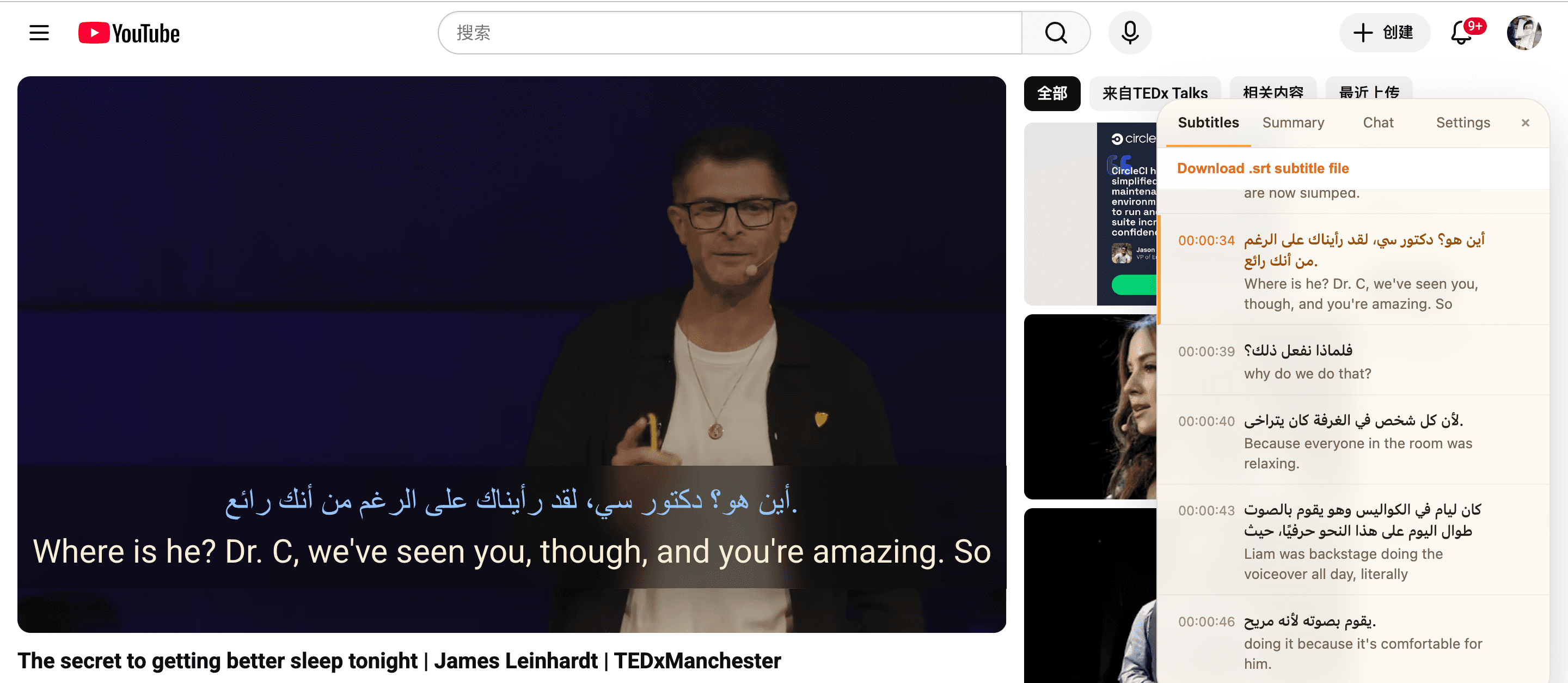
How to save captions from a YouTube video
- 1
Open a video with captions
Install TubeLingo in desktop Chrome, open a YouTube watch page, and wait for the subtitle panel to load. Check the source caption language first.
- 2
Check the text and translation
Replay a short section to confirm the words and timing. Choose a translation language if you want bilingual text; check that the translated lines have loaded.
- 3
Choose the file you need
Use the subtitle panel's download control. Depending on your version, choose plain text, text with timestamps, or SRT. Sign in when prompted and check the current plan requirements.
Choose text or a timed subtitle file
- Plain text: read or copy caption lines into your notes.
- Text with timestamps: keep a reference to each spoken moment.
- SRT: preserve caption start and end times for timed playback or review.
Captions are required
TubeLingo exports the subtitle lines available to it, not a new transcription of the audio. A video without usable captions may have nothing to export. Automatic captions and translations can contain errors; check important names, numbers, and quotes against the audio.
Free viewing and Premium export
Bilingual subtitles, word lookup, and saved vocabulary are listed as free viewing features. Subtitle download and SRT export are listed under Premium. Check the current plans before choosing an export workflow. TubeLingo is a desktop Chrome extension, not a feature of the YouTube mobile app.
Questions about subtitle files
Is downloading subtitles free?
TubeLingo lists subtitle export under Premium. If you only need to read or copy a short passage, YouTube's built-in Show transcript option is a separate free alternative when available.
Why is the download empty or unavailable?
Check that the video has captions and that the panel has loaded its lines. Reload once or try another captioned video. Selecting an export format cannot create missing captions.
Can I keep the original and translation together?
When translations have loaded, TubeLingo can include them with the source lines. Open the downloaded file to verify the language pair and completeness before using it.
Is the exported text always accurate?
No. Source captions and machine translation may contain mistakes. Review the file against the video before quoting, editing, or studying important passages.